Reading, Citations, Multimodal & Tree Chats
Prism lives directly inside Zotero's right-hand pane so you can read, verify citations, crop figures, queue follow-ups, and branch discussions without copy-pasting PDFs into external browser tabs.
1. Automatic Context Scopes, Context Bar & Status Banners
Prism automatically tracks what you are viewing in Zotero and displays it in the top Context Bar:
What Else Appears in the Context Bar & Top Banners
- Removable Attachment Pills: Explicit
@mentions, dragged quotes, and attached files display per-item token estimates (~Xk) and×remove buttons. - Active Persona & Language Pills: Click the
Personapill to pause/resume your Research Persona in one click; click the Preferred Response Language badge (e.g.EN,中文, shown when set to non-Auto) to jump to language settings. - Token Meter, Session Cost & Manual Compaction: Shows
used / capcontext tokens alongside cumulative session estimated USD cost, warns if a prompt exceeds your cap, and offers one-clickCompact(plusCancelwhile compacting). - Pinned Store Return Banner: When viewing a Workspace chat or a session opened from Global Search while another paper is active in Zotero, a top bar offers one-click
Back to active paper. - Offline Status Banner: When Zotero goes offline, Prism displays either a green
Offline mode · Running locally via {name}bar (when a local LLM is active) or an amberYou are offline · Cloud endpoints unavailablebar withUse {localProvider}orAdd Local LLM.
2. Explicit References with @ Mentions
Type @ inside the composer (at line start or after whitespace—never inside email addresses) to pull exact items from Zotero into your turn.
Use the 5 filter tabs in the @ picker (All, Papers, Notes, Collections, Tags) and navigate with ↑ / ↓ + Enter or Tab:
@Paper— Pins another paper (metadata + primary PDF) for instant comparison.@PDF/@Snapshot— Attaches standalone/supplementary PDFs, HTML web snapshots, or stored image files.@Note— Includes child or standalone Zotero notes (ideal with/edit-note,/check-citations, or/review-note).@Collection— Pulls in a Zotero collection (displaying its full hierarchical path and including subcollections).@Tag— References items carrying a specific user tag (up to250user tags; internal_ai_*tags are hidden).
Every attached @ mention and invoked / skill renders as a compact chip on your sent user bubble (which also has a Copy message button) and stays preserved and editable during Edit & Regenerate.
3. Paper Annotations Drawer, File Picker & Drag-and-Drop
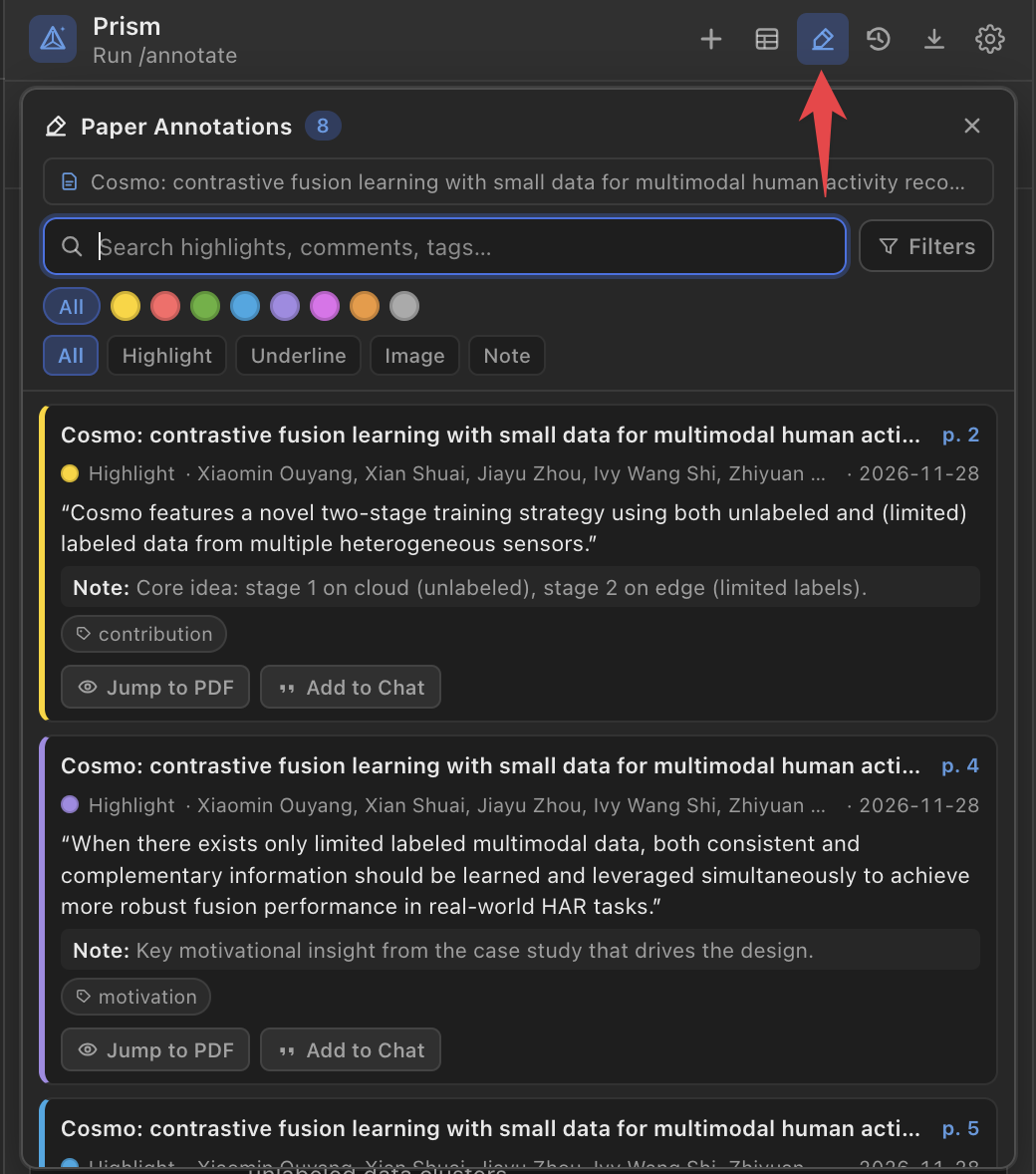
Click the highlighter icon in the sidebar header to open the Paper Annotations drawer for the currently active paper:
- Filters: Search annotation text, filter by 8 Zotero colors, filter by type (
All,Highlight,Underline,Image,Note), and expandFiltersforComment,Tag(with autocomplete),From date, andTo date. (For cross-library filtering by author or collection, ask Prism in chat or run/find-annotations, which uses thesearch_annotationstool.) - Actions on Every Match:
Jump to PDF,Add to Chat, or drag directly into the Prism composer.
Attaching Files via + Button or Drag-and-Drop
Click the + Attach Files button in the composer toolbar—or drag, drop, or paste directly into the composer (while reading in Zotero Reader with Prism open, Prism suppresses Zotero's automatic switch back to the Library tab so OS file drops land cleanly in Prism):
- Zotero items, collections, and
zotero://links from the Library pane. - Zotero PDF annotations (highlights, underlines, image/area crops, free-text
Add Text, sticky notes, and ink annotations) as well as raw selected PDF text (with automatic page-number extraction). - Images (screenshots, plots, clipboard pastes): auto-resized to max
1600px, up to4 MB. - External PDFs: up to
25 MB. - Text, code, and scientific data files (
.py,.r,.tex,.csv,.json,.fasta,.vcf,.slurm, or any UTF-8 text file): up to2 MB.
4. Grounded Click-to-Jump Citations
Whenever Prism cites a paper—using [1], [p. 4], [Author 2024, p. 4], or natural parenthetical references like (p. 4)—it renders compact numbered inline badges (1, 2, …) directly in the prose (numeric [1] auto-grounding is intentionally disabled during /translate so bibliography numbers inside translated text aren't mislinked):
- Hover or focus any badge to open an anchored preview card displaying Author-Year (or paper title), Section / Page, the verbatim quote, and the clickable footer
Highlights passage on page N. - Click any badge to jump straight to that exact page in Zotero's PDF, EPUB, or Web Snapshot reader (across both Personal and Group libraries) with a multi-pulse flashing highlight centered on the passage.
5. Reader Popups, One-Click Page Capture & Crop-to-Chat
Send passages, figures, and whole pages straight from Zotero's Reader:
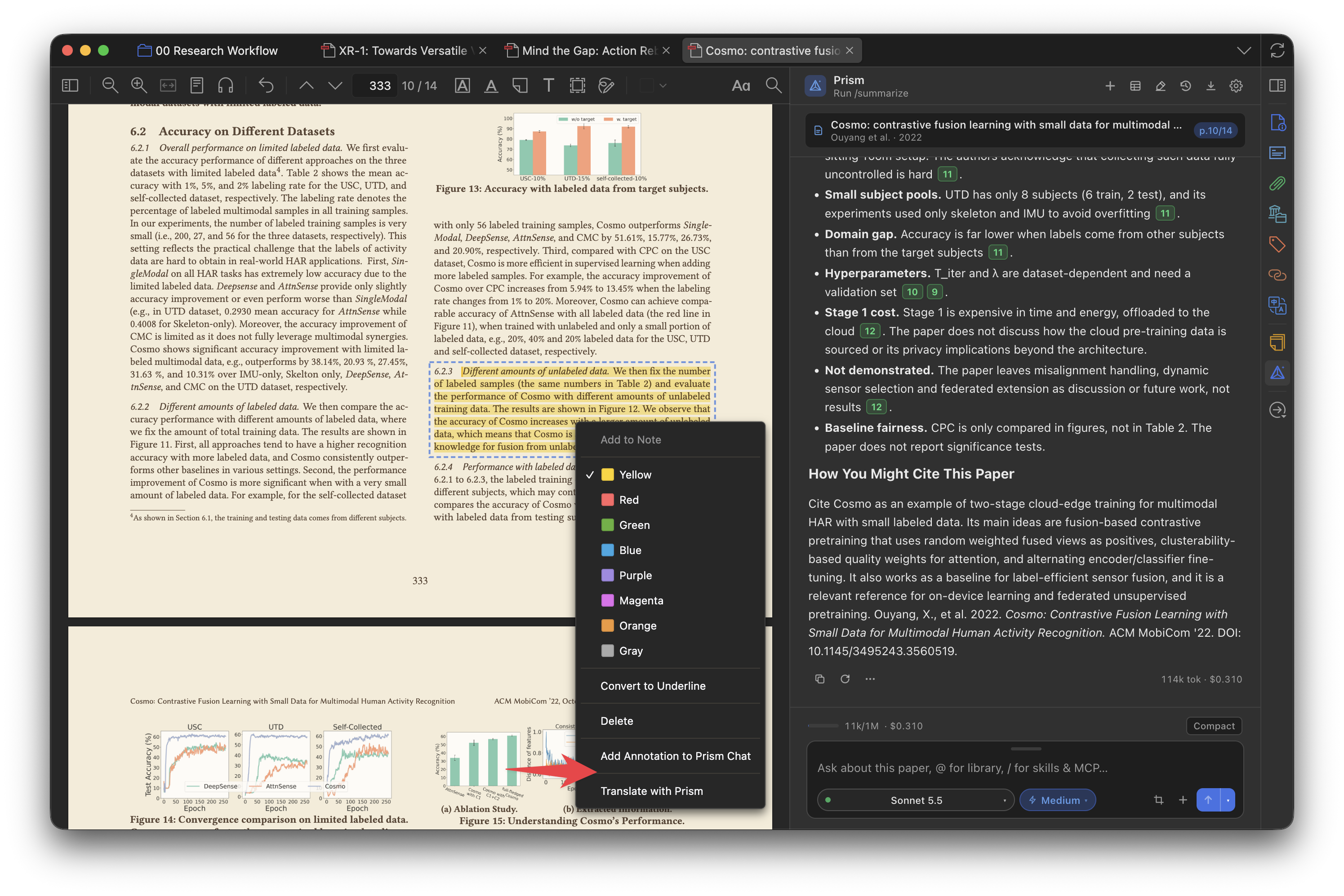
- Text Selection & Highlight Popup: Select text (or click a saved highlight) to see:
Ask Prism(click to attach quote to composer, or drag the button directly into the composer)Translate with Prism(opens sidebar and immediately runs/translateusing your independent Target Translation Language)
- Area / Image Selection Popup (Crop-to-Chat): Draw an area annotation over a figure, table, or equation to see:
Ask Prism(attaches the cropped image to the composer; also draggable)Explain figure/table(attaches the PNG crop and pre-fills/explain …in the composer so you can add a specific question before sending)
- One-Click Composer Page Capture: While viewing a PDF in Zotero Reader, click the Crop icon (
Capture current PDF page figure/table as image) in the composer toolbar to capture the visible PDF page as an image in one click. - Reader Right-Click Context Menus:
- Page menu:
Ask Prism,Explain figure/table (capture page)(pre-fills composer). - Annotation sidebar menu (up to 5 selected annotations):
Add Annotation to Prism Chat,Translate with Prism.
- Page menu:
6. WYSIWYG Composer, Thinking Cards & Offline Visual Rendering
Typora-Style Markdown Composer
- Resizable Height: Drag the composer's top resize handle (
36px – 520px, persisted across sessions), double-click (or focus +Enter) to reset to auto-fit, or nudge with↑/↓. - Live Formatting: Supports live
#headings, syntax-highlighted code fences (exit via closing fence or triple-Enter), live GFM pipe tables (Tab/Shift+Tab), nested task checklists (- [ ]),==highlight==,~sub~,^sup^,<kbd>,<abbr>,:emoji:shortcodes, smart Markdown paste (even from VS Code/Cursor/terminals carrying syntax-colored HTML),⌘Click/Ctrl+Clickto open links, and clickable KaTeX math (press⌘⇧M/Ctrl+Shift+Mor type$$+Enter; click any formula to edit in a live KaTeX preview popover).
Thinking / Reasoning Disclosure & Rich Offline Output
- Live Activity & Thinking Cards: Shows live phase status (
Preparing context…,Uploading PDF…,Connecting to MCP tools…,Waiting for model…,Preparing tool call…), live extracted thinking step titles, an elapsed timer (Thought for X.Xs), tool execution chips withAuto-routed → {target}badges, and aCopy reasoningbutton when expanded. - Extended Academic Markdown (100% Offline, Zero CDN):
- KaTeX math (including built-in
\RR,\NN,\ZZ,\EE,\PPmacros), highlight.js code blocks withCopy, GFM tables withCopy table, 13 GitHub/Obsidian Callout Admonitions (NOTE,INFO,ABSTRACT,SUMMARY,TIP,HINT,IMPORTANT,WARNING,CAUTION,DANGER,EXAMPLE,QUESTION,QUOTE, including foldable[!TYPE]+/[!TYPE]-), Markdown Footnotes ([^1]with hover previews), and collapsible<details>blocks. - Interactive Visual Cards: Renders 10 Mermaid diagram families (
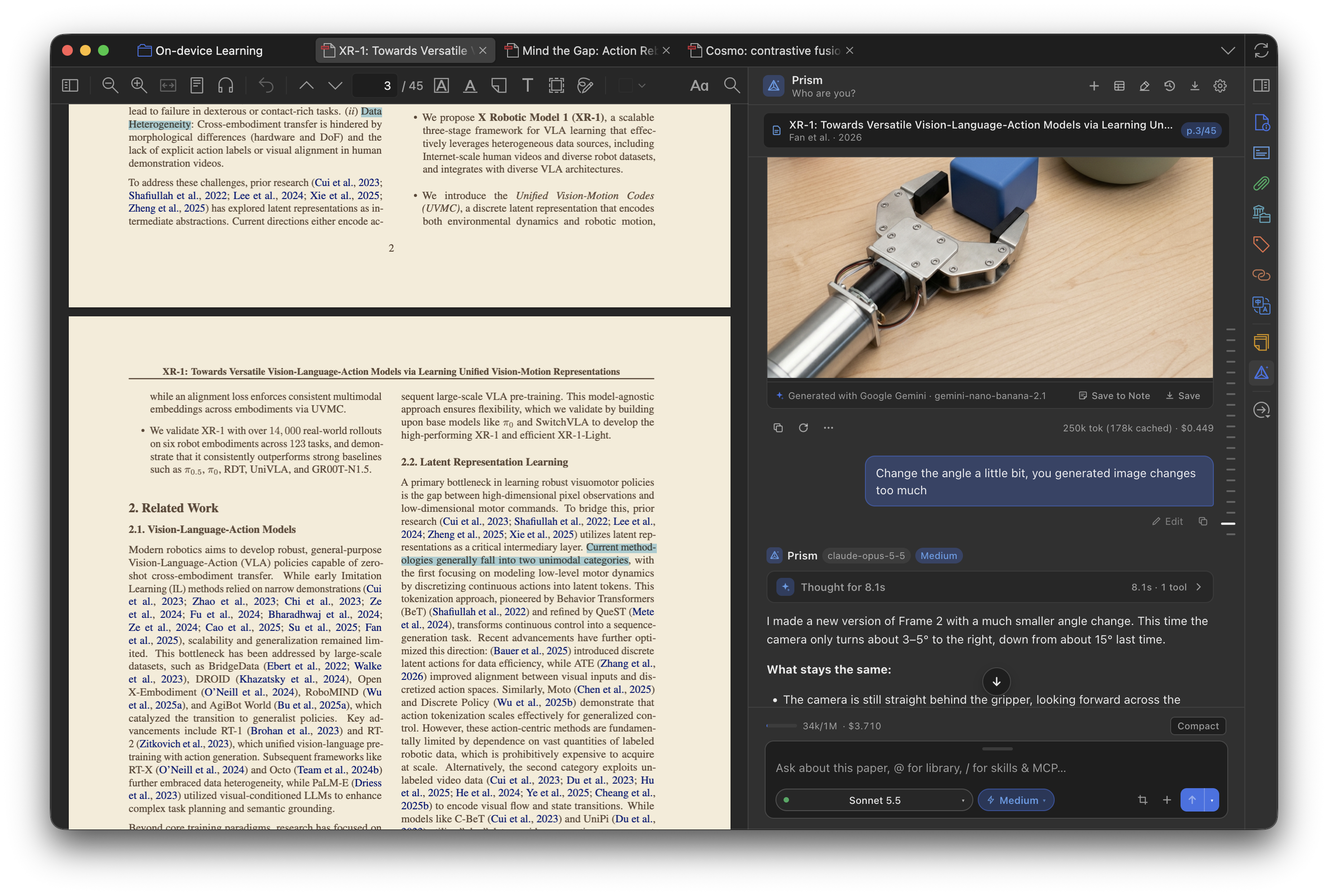
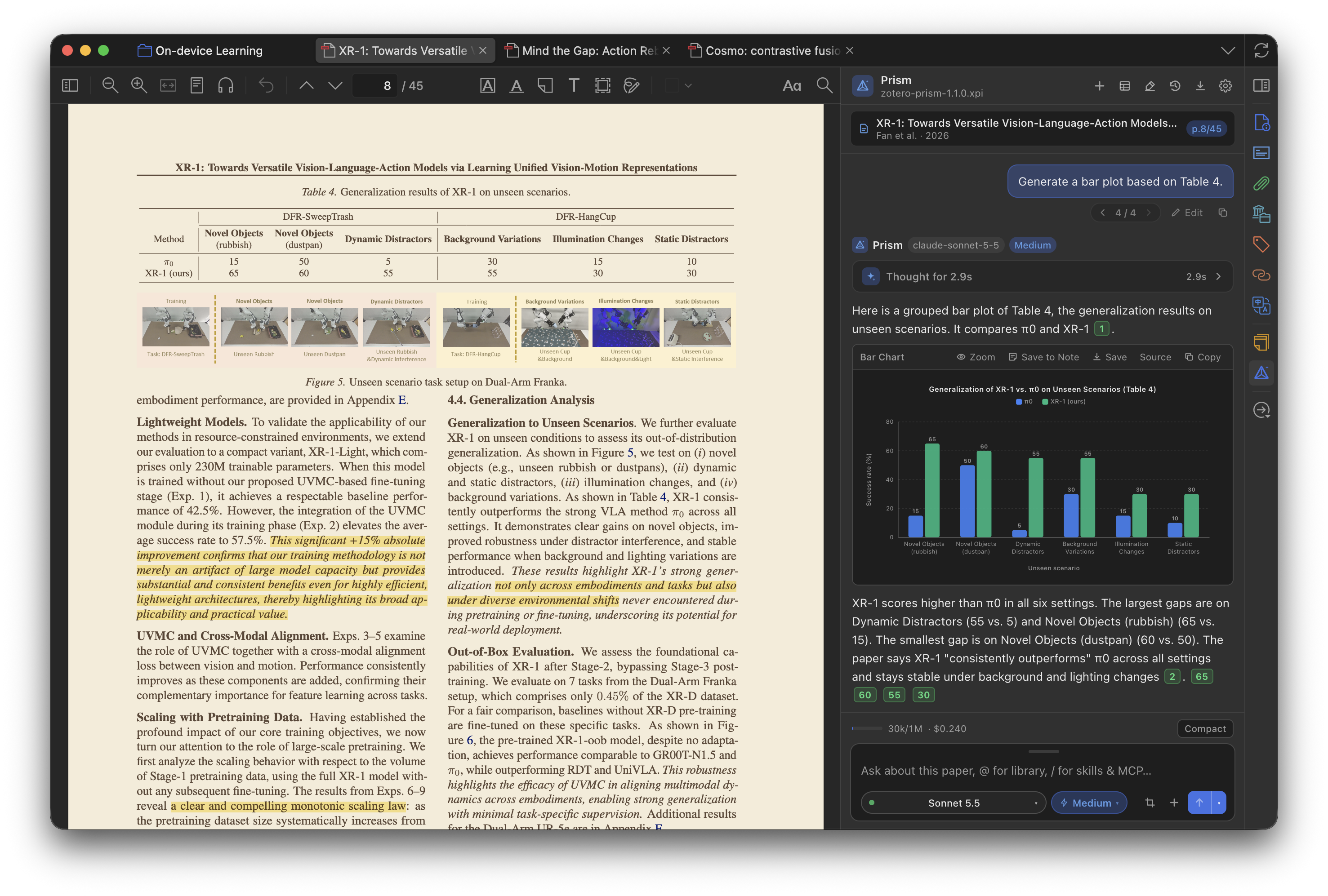
flowchart,sequenceDiagram,stateDiagram,mindmap,pie,timeline,classDiagram,erDiagram,xychart-beta,gantt), Graphviz DOT, sanitized inline SVG, JSON charts (Chart.js,Vega-Lite,echarts/plot,bar,line,area,pie,doughnut,scatter), CSV/TSV tables, and ASCII box diagrams. Every card includes an inline toolbar:Zoom,Save to Note,Save,Source/Previewtoggle, andCopy. - Generated Images & Audio Output: Assistant-generated images display a
Generated with {model}badge plus inlineSave to NoteandSavebuttons; up to the 6 most recent generated images automatically carry forward into subsequent turns so vision models can iteratively refine figures. Models returning audio render an inline HTML5<audio controls>player with optional transcript.
- KaTeX math (including built-in
7. Streaming: Background Execution, Queue Mode & Auto-Follow Scroll
- Background Streaming Across Paper / Tab Switches: Switching to another paper, collection, or Zotero tab while Prism is replying never aborts the stream—generation continues bound to the originating session and smoothly restores live text, thinking timer, tool activities, and proposals when you switch back.
- Smart Auto-Follow Scroll: Scrolling up while Prism streams pauses auto-scroll without fighting you and shows a floating
Scroll to latest(↓) button to jump back and resume following. - Sending While Assistant Is Replying (
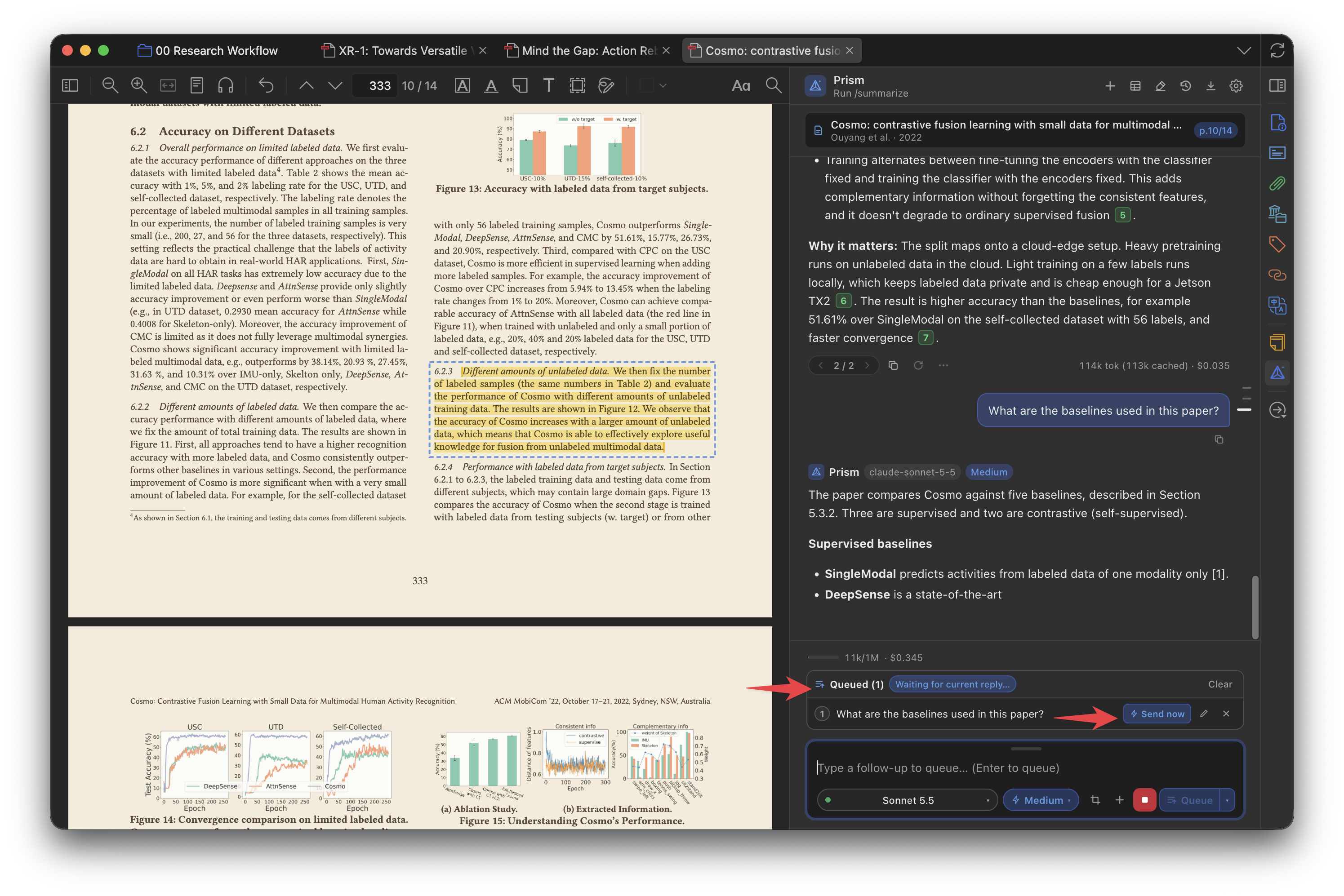
Settings → General Settings → Agent & Cost Guardrails):Queue(Default): Follow-ups collect in the Queue Tray above the composer and auto-send in FIFO order. Inside the tray you can Move up, Edit in composer (restoring text, mentions, skills, quotes, and images), Send now, Remove, or Clear. The queue pauses safely if you click Stop / pressEsc, or on an error or Privacy Guardrail block (resume withSend next).Send now: Cleanly aborts the active stream and dispatches your new prompt immediately.- One-Off Override: Press
⌘⇧↵/Ctrl+Shift+Enteror open the send-button split menu (Send this draft now/Queue this draft instead) without changing your default setting.
8. Sessions Drawer, Tree Branching, Auto-Compaction & Search
Sidebar Chat sessions Drawer
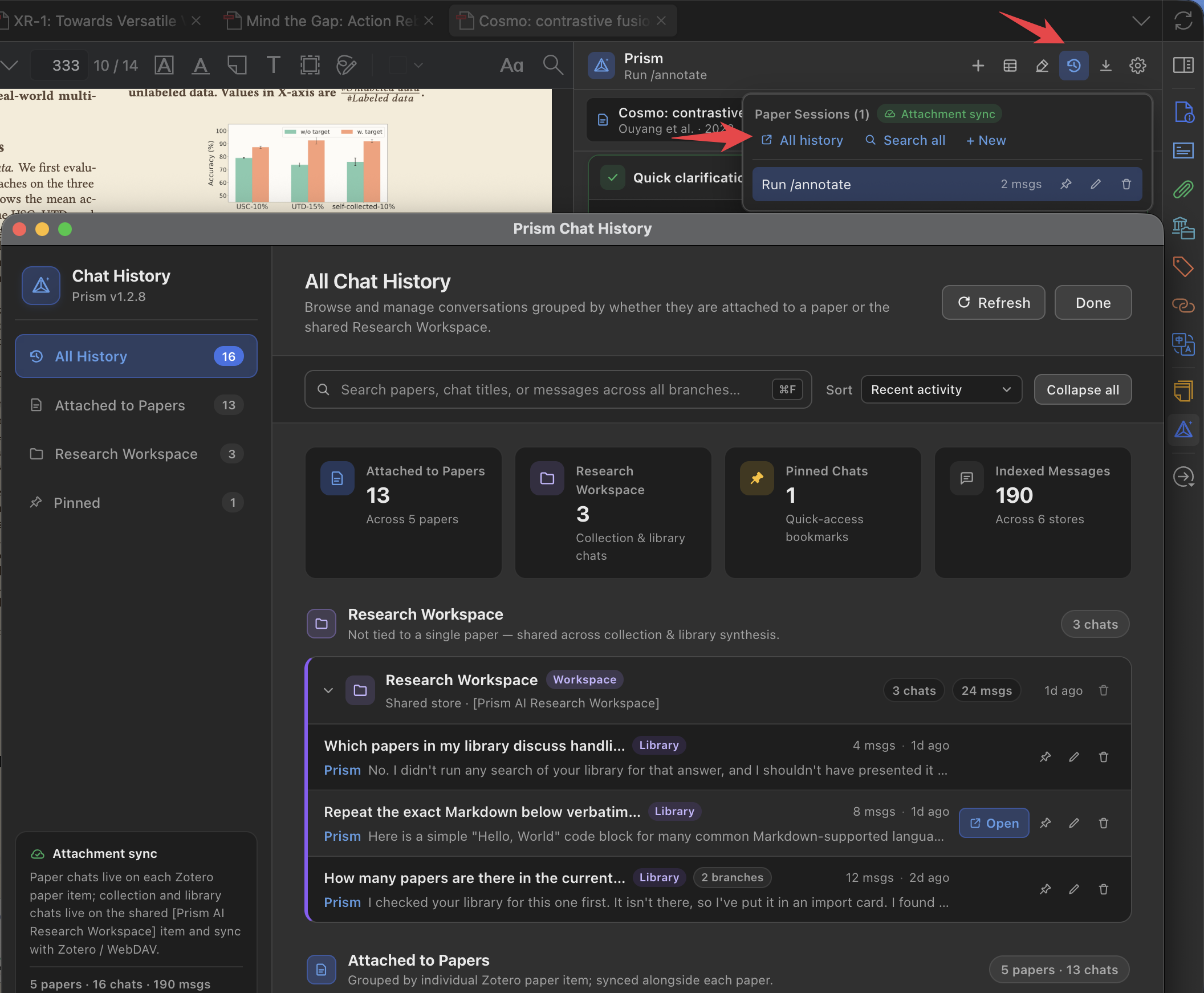
Click the History icon in the sidebar header to manage sessions for the active paper (or Workspace) without leaving the sidebar: view the live Sync Status Pill (Attachment sync / Note sync / Saving… / Sync error), Pinned / Recent grouping with message & branch counts (X msgs · Y br), double-click any title to rename, pin/unpin, delete, + New, Clear all, Search all, or open the standalone All history window. Empty chats also include a Customize prompts shortcut on the welcome screen.
Non-Destructive Branching Tree History
- Click Edit on any previous user message (supporting adding/removing attached images,
@mentions, and/skills) or Retry on any assistant reply to create a non-destructive sibling branch. - Switch branches anytime with the
< 1 / 2 >pager; Prism remembers the active leaf inside each branch.
Automatic & Manual Context Compaction
- Enable
Auto-compact long conversationsin Settings → General Settings (default: on; triggers at82%of context), or clickCompactin the Context Bar token meter (orCompact Context Nowon overflow error banners). - Uses OpenAI Native
/responses/compactor Claude Native compaction (eligible at>= 45,000estimated tokens, API trigger50,000) when available, or builds a client-side checkpoint via your Fast / Cheap route preserving Zotero keys and tool outcomes. Each compaction renders as a collapsible card with a method badge (OpenAI Native,Claude Native, orCheckpoint).
Turn Navigator, In-Chat Find, Global Search & Clarifications
- Turn Navigator Rail: Appears on the right edge once a chat has 2+ user turns—hover to preview the turn outline and click to jump directly to any turn.
- In-Chat Find (
⌘F/Ctrl+F): Highlights up to2,000matches, includes anAaMatch Case toggle, supportsF3/Shift+F3navigation, and automatically expands collapsed thinking (<details>) blocks when a match is inside. - Global Cross-Paper Search (
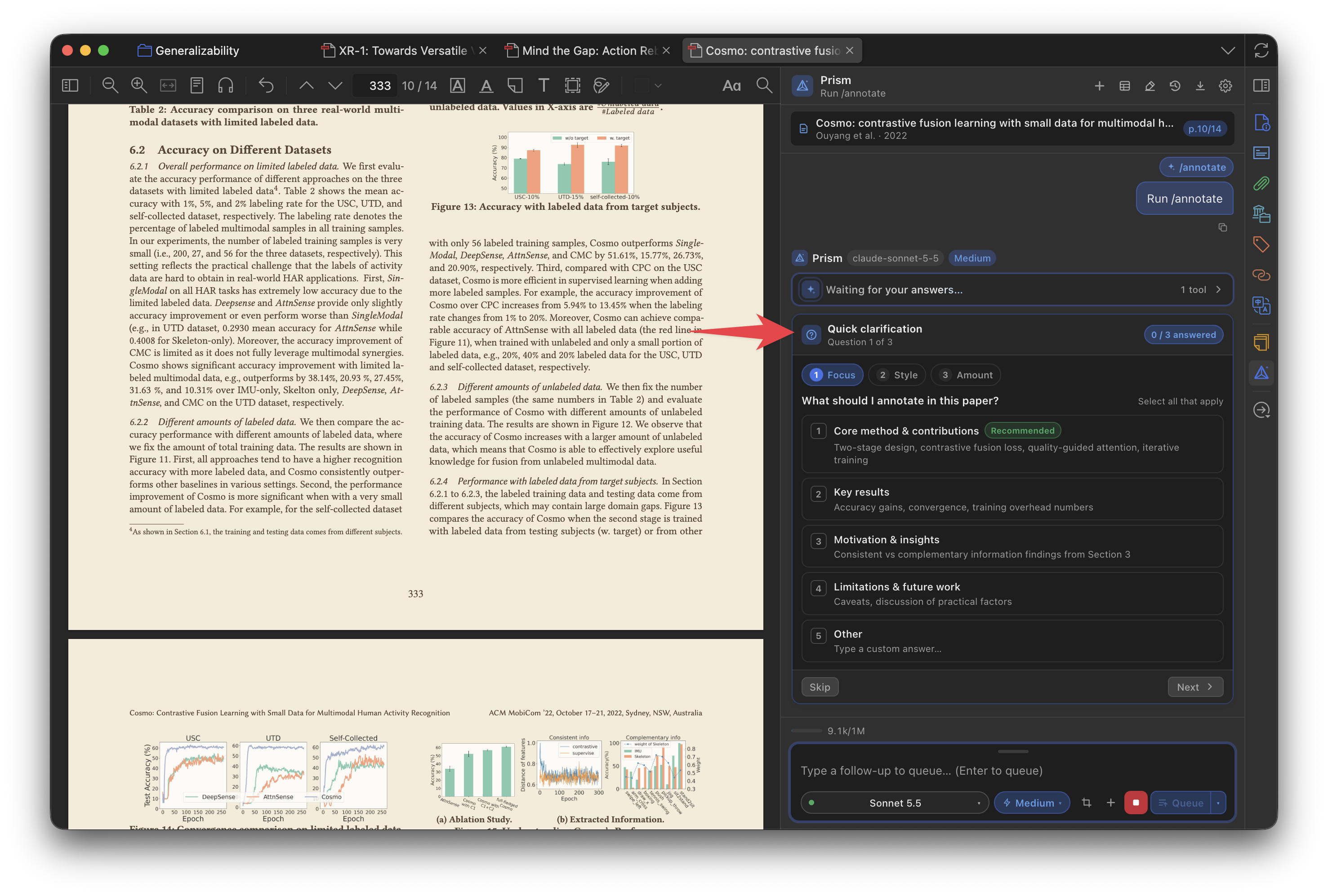
⌘⇧F/Ctrl+Shift+F): Searches text,@mentions,/commands, and quotes across every paper, workspace chat, and alternate branch withAll/Pinned/Papers/Workspacechips. - Clarifying Question Cards: On ambiguous organization, comparison, or multi-step prompts, Prism may proactively inspect your library first and pause with a tabbed multi-question card (
1–6questions,2–8options each,Recommendedbadges, optionalOtherinput up to1,000chars,Back/Next,Skipto use defaults, and collapsible answered summary).