Getting Started & Workspace Tour
Prism (zotero-prism) embeds directly into Zotero's right-hand pane across both the Library view and the PDF / EPUB / Web Snapshot reader. Everything runs locally inside Zotero—with zero accounts, zero proxy servers, and zero telemetry.
System Requirements
- Zotero: Version
7.0–10.*on macOS, Windows, or Linux. - AI Backend (at least one):
- A cloud API key from OpenAI, Anthropic Claude, Google Gemini, DeepSeek, OpenRouter, or any OpenAI/Claude-compatible gateway; or
- A local model server such as Ollama, LM Studio, or vLLM (no API key or internet required).
1. Install the .xpi Plugin
- Download the latest
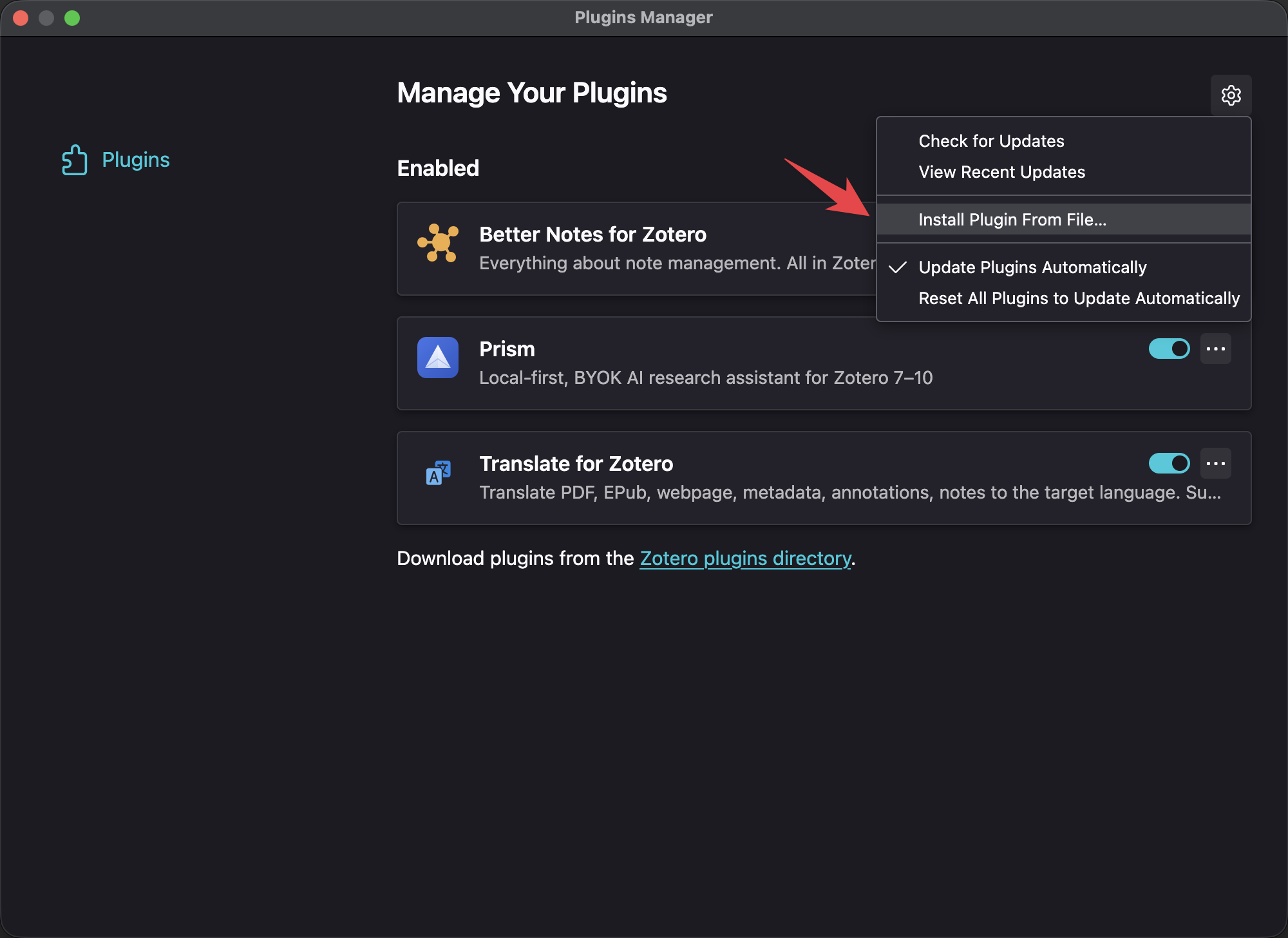
zotero-prism-<version>.xpifrom GitHub Releases. - Open Zotero and navigate to Tools → Plugins (or Tools → Add-ons).
- Click the gear icon (⚙) in the top-right corner and choose Install Plugin From File….
- Select the downloaded
.xpifile and restart Zotero if prompted.
2. Open Prism & Complete First-Run Setup
You can toggle the Prism sidebar at any time from:
- The Prism icon in Zotero's right-hand Item Pane / Reader Context Pane vertical sidenav (right alongside Info, Notes, Tags, and Related).
Tools → Toggle Prism AI Sidebarin Zotero's menu bar.- The keyboard shortcut
⌘J(macOS) /Ctrl+J(Windows & Linux).
Prism fills Zotero's native right-hand pane and resizes smoothly whenever you drag Zotero's pane splitter.
On first launch, Prism displays a 3-Step Quick Setup card:
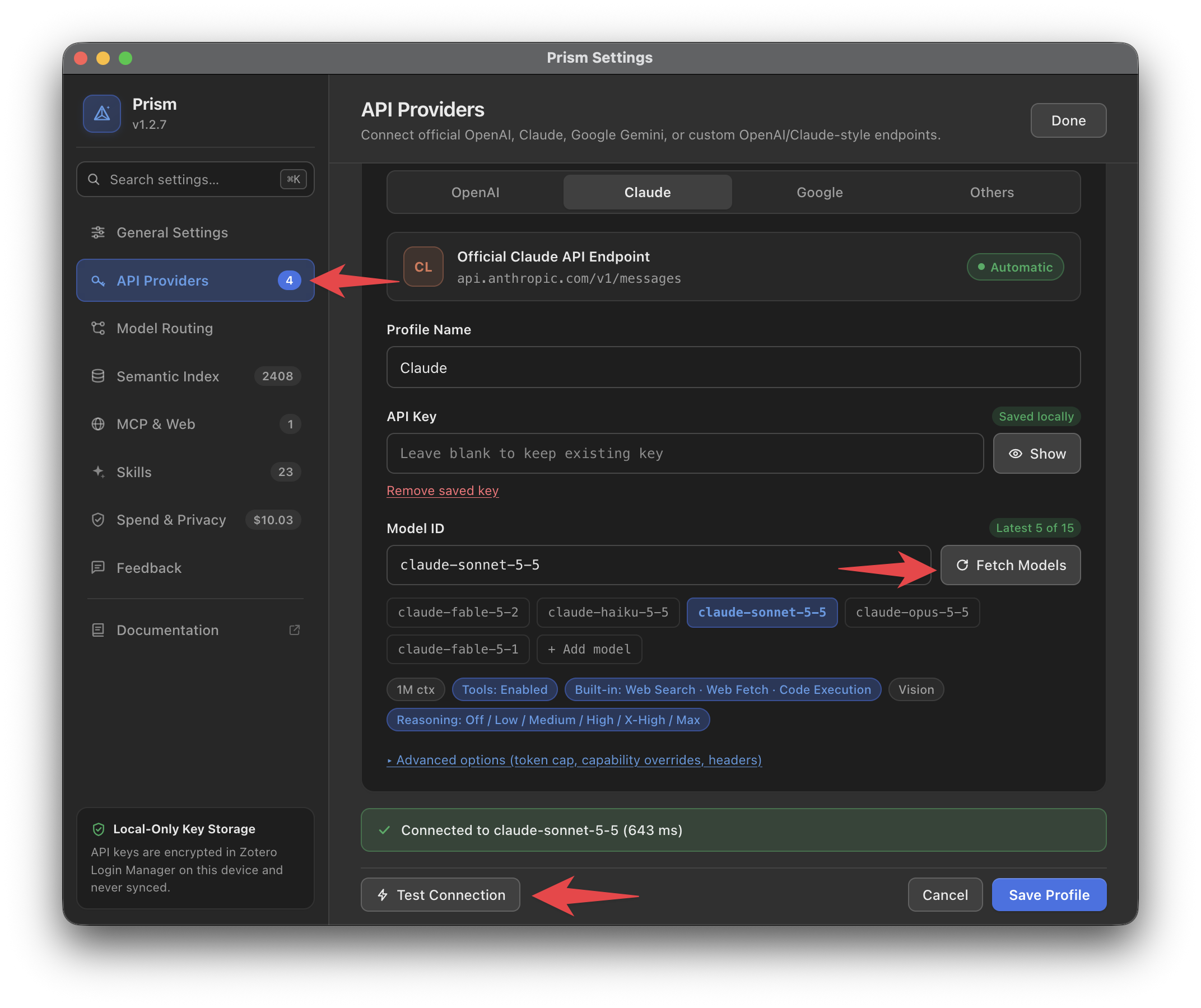
- Pick your model family: Click OpenAI, Claude, Google Gemini, or Others / Ollama to jump straight into Prism Settings → API Providers with the right wire format pre-selected.
- Paste your API key (or local Base URL): Keys are encrypted locally in Zotero's Login Manager (
Services.logins) and never synced or exported. - Click
Test Connection&Fetch Models: Prism loads the live models available to your account and sorts them by release recency. Close Settings (Done) and start reading.
3. Tour of Prism's Windows & Views
Prism provides an embedded sidebar plus focused native windows so heavy workflows never feel cramped:
Any dropdown in Prism with 10 or more choices (models, collections, saved matrices, languages) automatically includes an inline multi-token search input and full keyboard navigation (↑ / ↓, Home / End, Enter, Esc).
4. Language, Typography & Custom Shortcut
Open Prism Settings → General Settings (the Documentation link at the bottom of the left rail opens this online manual directly in your browser in your active UI language):
- 6 Bundled Offline UI Languages: Choose
Auto — follow Zoteroor switch live without restarting between English (US), English (UK), 简体中文, 繁體中文, 日本語, and 한국어. Changes immediately update the sidebar, all Prism windows, Zotero menus, Preferences pane, and Reader popups. - Independent Typography Scaling:
- Chat Font Size (
11px – 20px, default13px): Adjusts message prose and composer readability. - Plugin UI Font Size (
11px – 20px, default13px): Proportionally scales all UI chrome (85% – 154%) across the sidebar, tabs, buttons, drawers, and standalone windows.
- Chat Font Size (
- Custom Sidebar Shortcut: Pick from presets (
Accel+J,Accel+Shift+P,Accel+Shift+A,Alt+P) or clickRecord custom…to bind your preferred key combination.
5. Complete Keyboard Shortcuts Reference
Sidebar & Navigation
Markdown Composer
Standalone Windows
6. Automatic & One-Click Updates
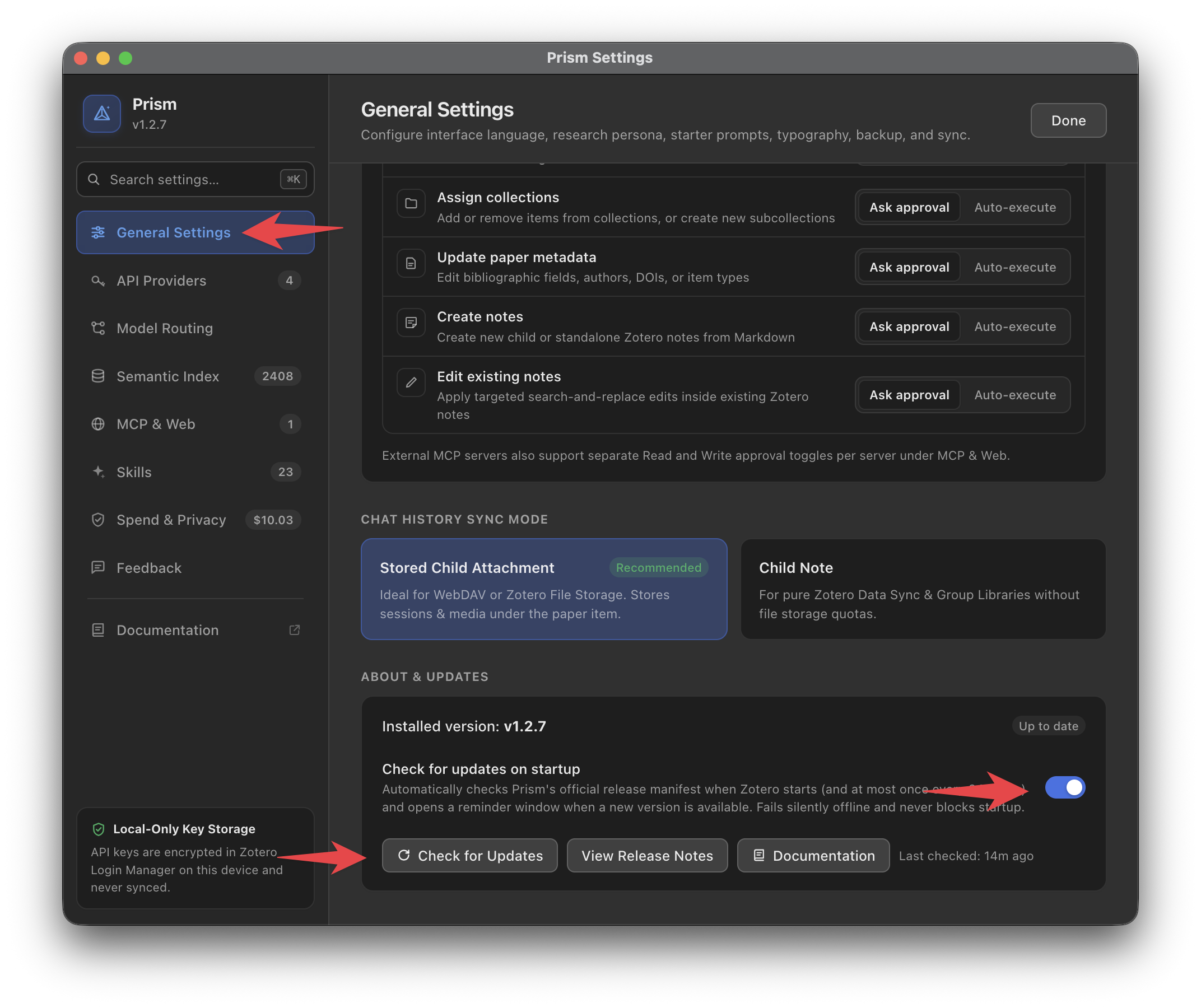
Every tagged Prism release publishes a Zotero-compatible update.json manifest with cryptographic SHA-512 verification (separate manifests exist for Stable and Beta/Prerelease channels).
Option A: Automatic Startup Check & Reminder Popup (Default)
Whenever Zotero starts, Prism runs a lightweight, non-blocking check against the official release manifest (failing silently when offline). If a newer version is available, Prism opens a centered Prism Update Available popup window where you can:
- Click
Install vX.Y.Zto download, verify (SHA-512), install via Zotero'sAddonManager, and reload in one click. - Click
View Release Notesto inspect what changed. - Click
Remind Me Later(reminds on next Zotero launch) orSkip This Version(suppresses prompts until an even newer release ships). - Toggle
Automatically check for updates when Zotero startsoff anytime right from the popup or in Prism Settings → General Settings → About & Updates (Check for updates on startup).
Option B: Manual One-Click Update Inside Prism Settings
- Open Prism Settings → General Settings → About & Updates (or click the
↑ vX.Y.Zpill in the Settings left rail whenever an update is detected). - Click Check for Updates, or toggle Check for updates on startup (enabled by default; also runs at most once every 24 hours while Zotero stays open and skips silently when offline).
- When a newer version appears, click
Install vX.Y.Z. Prism downloads the official GitHub.xpi, verifies itssha512digest through Zotero'sAddonManager, installs the update, and reloads automatically.
If an AI response is still streaming when you click Install, Prism pauses and asks you to either wait for the reply to finish or confirm Install Anyway so you never lose work mid-generation.
Option C: Zotero Background Auto-Updates
Make sure Tools → Plugins → ⚙ → Update Plugins Automatically is enabled in Zotero. You can also jump directly to View Release Notes, Documentation, or Open Zotero Add-ons Manager from the About & Updates card.